How to Ask Gemini AI to Change a Background Into a Natural Wedding Photoshoot Scene
14.5.2026

How to Ask Gemini AI to Change a Background Into a Natural Wedding Photoshoot Scene
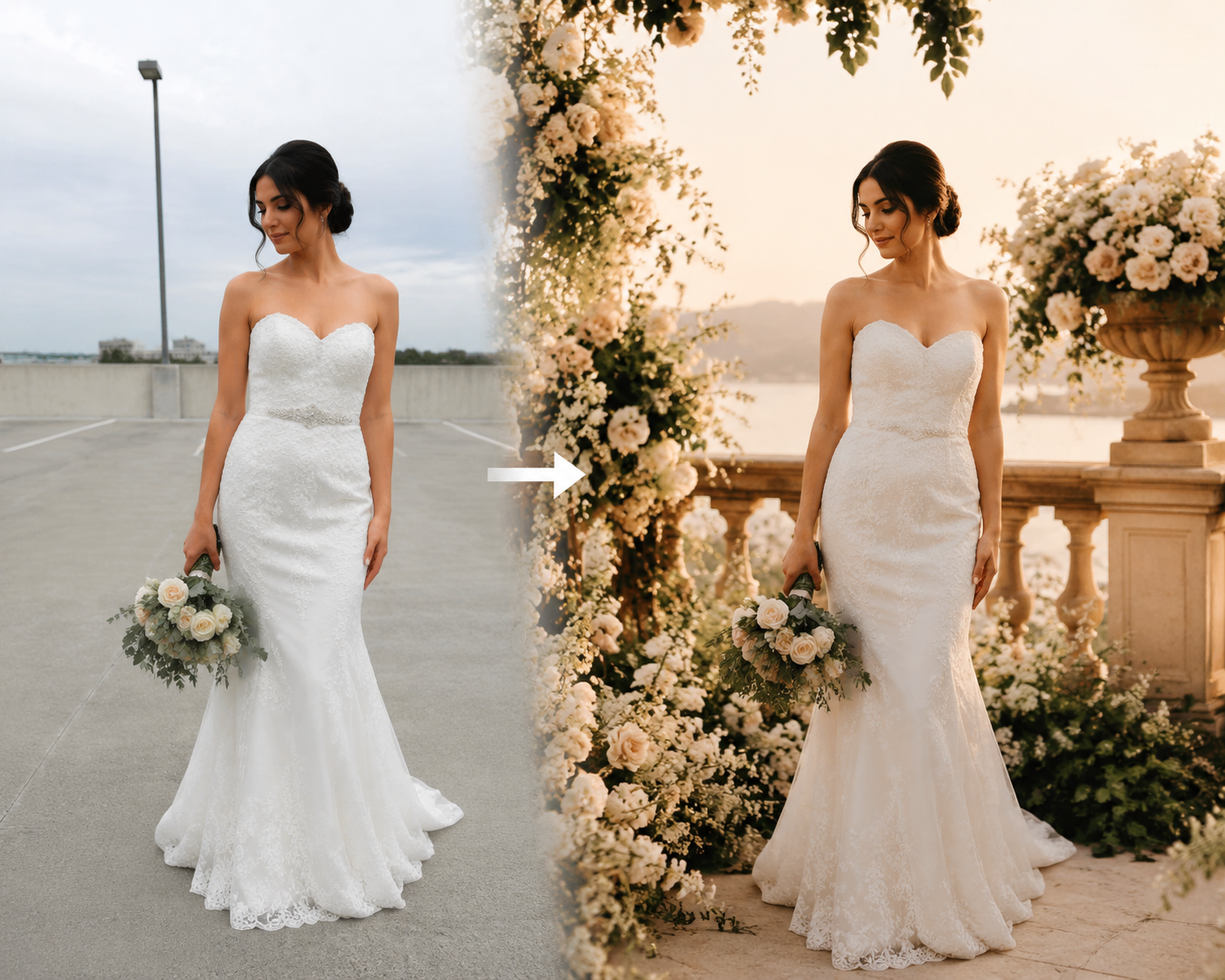
If you want to ask Gemini AI to change a background into a natural wedding photoshoot scene, the most important thing is not only the model. It is how clearly you describe the subject, the wedding setting, the lighting, and the final photography style. This guide explains how to write a stronger prompt, what makes wedding background changes look realistic, and when a dedicated workflow like Create Wedding Photos is more practical than using a general AI chat interface alone.
The intent behind this keyword is highly compatible with an AI wedding photo product. The user is not looking for a random fantasy edit. They usually want to turn an ordinary photo into something that feels like:
- a bridal portrait
- a pre-wedding editorial
- a romantic couple photoshoot
- a believable wedding keepsake
That is why the goal is not “replace background” in a generic sense. The goal is to produce a natural wedding photoshoot scene.
Why natural wedding background changes are harder than normal background swaps
Many people assume this is just a cutout problem. It is not.
If you want the final result to feel like a real wedding photoshoot, the AI has to handle more than replacing the backdrop. It also has to make the image feel visually consistent.
That means the output needs:
- believable bridal or wedding styling
- matching light direction
- realistic color temperature
- natural skin tones
- a background that fits the pose and framing
- a final image that looks photographed, not pasted together
This is why weak prompts often fail. They may say “change this to a wedding background,” but they do not explain what kind of wedding scene, what light quality, what mood, or what style of final image should exist.
What to tell Gemini AI when changing a photo into a wedding scene
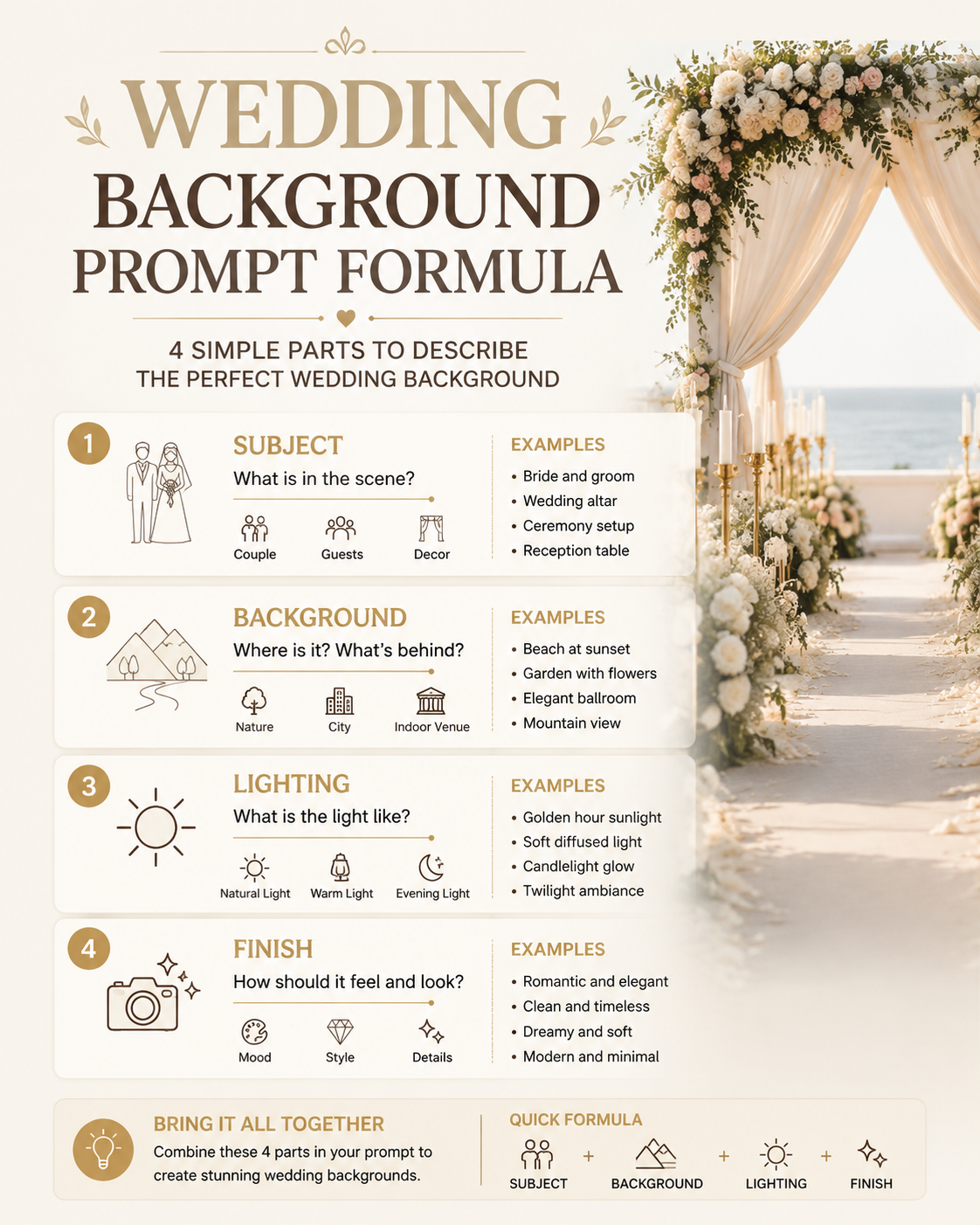
If you want a better result, your prompt should cover four things clearly:
1. The subject
Tell the model who should remain recognizable.
Examples:
- preserve the face and identity of the original woman
- keep the person recognizable and realistic
- maintain natural skin tone and facial proportions
This matters because users usually want the final image to still look like them, not like a different model.
2. The wedding background
Do not only say “wedding background.” Describe the actual environment:
- romantic garden wedding photoshoot
- luxury indoor bridal studio
- beach wedding at golden sunset
- elegant European wedding terrace
- soft floral ceremony backdrop
The more concrete the background, the more coherent the output usually becomes.
3. The lighting
Lighting is where many fake-looking edits break down.
Use phrases like:
- soft natural wedding light
- golden hour bridal lighting
- elegant diffused editorial light
- warm romantic indoor window light
This helps the model unify the subject and the new scene.
4. The finish
You should also describe the image style you want:
- realistic wedding photography
- premium bridal editorial
- natural skin texture
- elegant luxury wedding portrait
- magazine-quality wedding photoshoot
Without a finishing instruction, the result may become too synthetic, too stylized, or too generic.
A prompt formula that works better
Instead of writing a vague one-line instruction, use a clearer structure.
Prompt formula:
- preserve the original person's identity
- describe the wedding setting
- describe lighting
- describe final photography finish
- mention realism and natural facial consistency
Example structure:
Preserve the original woman's face and identity. Change the background into a romantic garden wedding photoshoot with soft floral arrangements, elegant bridal atmosphere, warm natural light, realistic skin texture, premium editorial wedding photography, natural depth of field, and a believable bridal portrait finish.
A ready-to-use prompt for your homepage workflow
If the user wants something they can copy directly and try, this is the most useful part.
Use this prompt:
Preserve the original person's face, identity, and natural skin tone.
Transform the photo into a realistic luxury wedding photoshoot scene
with an elegant bridal atmosphere, soft natural lighting, refined
wedding styling, and a believable professional photography finish.

Use a romantic floral or architectural wedding background.
Keep the subject sharply recognizable.
Match the new light direction to the face and body.
Make the final image look like a premium real wedding portrait
instead of a generic AI edit.
This prompt works because it is doing the right jobs at once:
- identity preservation
- wedding-specific setting
- realistic lighting
- premium finish
If you want a more direct workflow for this kind of transformation, the easiest next step is to use Create Wedding Photos on the homepage and paste the prompt there.
When a dedicated AI wedding photo tool works better than Gemini chat
Gemini can help with prompt drafting and general image instructions, but a dedicated product can be more reliable when the user specifically wants wedding-style results.
That is because a specialized workflow is usually better at:
- keeping the result aligned with wedding photography intent
- producing more consistent bridal or couple imagery
- reducing generic non-wedding outputs
- making the prompt-to-result path easier for non-technical users
For wedding use cases, the practical question is not “Can Gemini do it at all?” The practical question is “What gives me a believable wedding result faster?”
That is where Create Wedding Photos fits naturally. It matches the user goal directly instead of forcing them to adapt a general-purpose tool.
Common mistakes to avoid
If your result still looks fake, these are the usual reasons:
- the original image is too low quality
- the prompt only says “wedding background” without more detail
- lighting is not described
- identity preservation is not emphasized
- the requested style is too broad or contradictory
A stronger prompt solves many of these issues before generation even starts.
What kinds of photos work best?
The best starting images are usually:
- clear portraits
- front-facing or slight-angle selfies
- decent lighting on the face
- minimal obstruction
- enough visible shoulders or upper body for scene adaptation
The cleaner the input, the easier it is to create a wedding result that feels natural.
Final answer
If you want Gemini AI to change a background into a natural wedding photoshoot scene, the best results come from a prompt that clearly defines:
- who should stay recognizable
- what kind of wedding scene should appear
- what lighting should shape the result
- what finish should make it look like real wedding photography
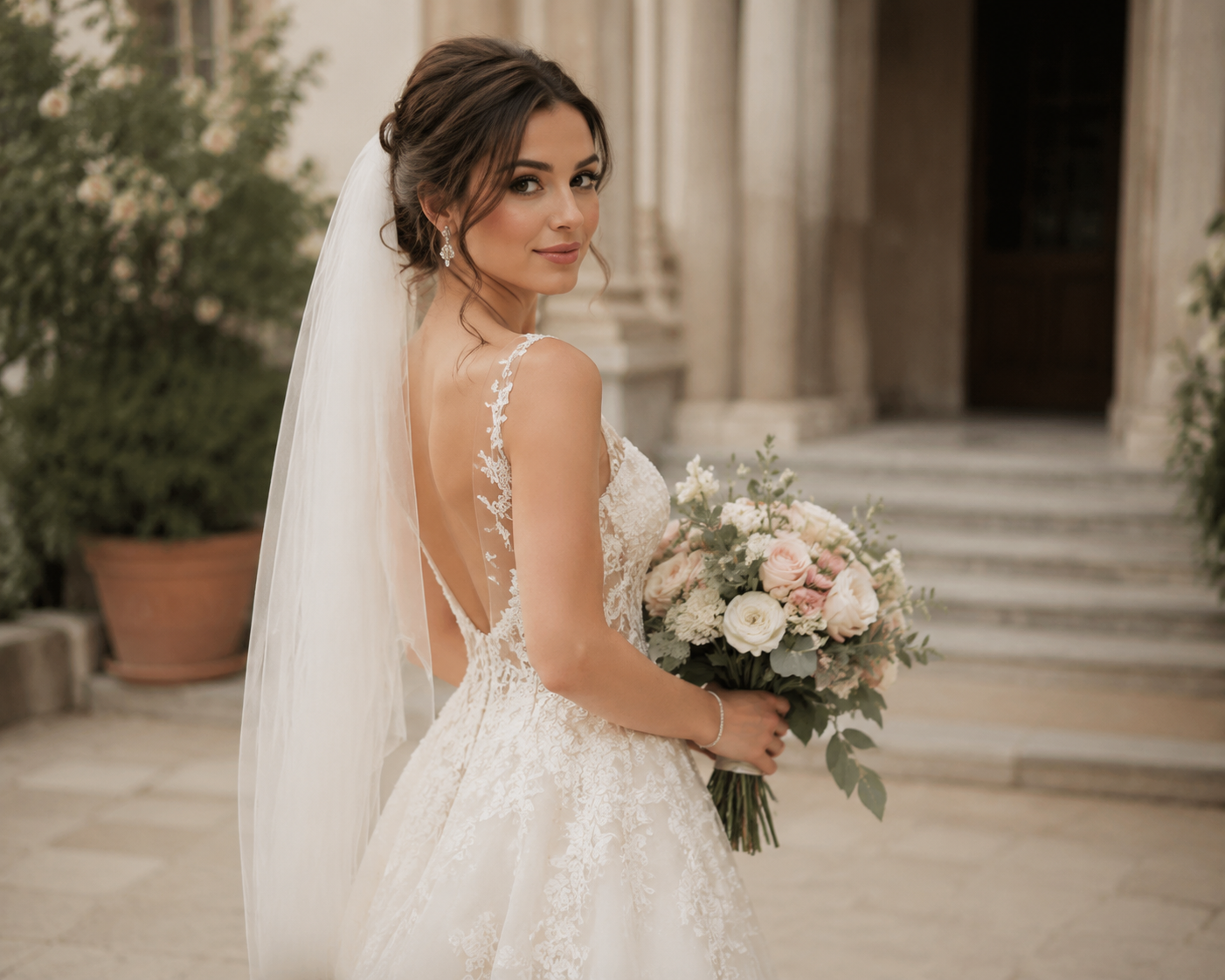
That is the difference between a generic background edit and a believable AI wedding portrait.
If you want a faster path than writing everything manually in a chat tool, the most practical next step is to use Create Wedding Photos and paste the prompt directly into the homepage workflow.